This page covers connecting to the Sinfar persistent world using Neverwinter Nights: Enhanced Edition (EE) on Windows. Sinfar runs natively on Diamond Edition; EE connects through a custom client loader (SinfarXEE). Two things make this work: EE's engine is rolled back to the supported build, 81.8193.16 (newer builds break character creation on Sinfar), and the game is launched through Sinfar's loader — both are separate downloads below. EE works about 95% of the time once everything here is in place; where Diamond Edition is available we still recommend it for stability. Buying the game from GOG includes a free Diamond Edition copy alongside EE.
For Diamond Edition, see Getting Started - Diamond Edition or Getting Started - Diamond Edition on Linux.
Beyond a copy of EE, you need five Sinfar downloads, installed in the order below. Installing them out of order — especially the top hak — is the cause of most setup crashes.
Need help? The Discord server is the fastest place for questions and for finding people to play with.
Connect with us
- Discord: discord.gg/sinfar
- Forum: forum.sinfar.net (ask in-game or on Discord for the sign-up password)
- In-game tools & info: nwn.sinfar.net
- Vault page: World of Sinfar on NeverwinterVault
Downloads
Install these five in order. Items 1 and 5 install under Documents\Neverwinter Nights; items 2–4 go in your game install folder.
| # | Download | What it does | Install location |
|---|---|---|---|
| 1 | Full hak pack (v30) — or per-file from Hak Files | Core Sinfar content — haks, the Sinfar .tlk, and palette overrides. Required to connect. |
Documents\Neverwinter Nights (extracts into the haks, tlk, and override subfolders)
|
| 2 | Client engine rollback (win32_8181) | Replaces EE's game binaries with the supported build, 81.8193.16. Newer EE builds break character creation on Sinfar. | [NWN install]\bin (alongside the existing win32 folder; creates win32_8181\)
|
| 3 | SinfarXEE client loader — see Sinfar Client Extender | Sinfar's custom loader; you launch the game through it via sinfarx_ee.exe. Without it you cannot connect at all, even via Direct Connect. Sinfar-only; won't work on other EE servers. |
Into the win32_8181 folder from download 2 (adds sinfarx_ee.exe)
|
| 4 | Override files (sinfar_ee_ovr.7z) | Revert EE model/tileset changes so you can load into Sinfar and create characters. | [NWN install]\bin\win32_8181\ovr
|
| 5 | EE top hak | Replaces the default top hak; prevents many EE-specific crashes. Install after the haks above, overwriting the existing top hak. | Documents\Neverwinter Nights\haks
|
Installation (in order)
First, install NWN:EE and note the install folder (referred to below as [NWN install]). On Steam this is typically ...\steamapps\common\Neverwinter Nights. Then install the five downloads below in order — the step numbers match the download table above.
- Haks: extract the full hak pack into the base
Documents\Neverwinter Nightsfolder — not thehakssubfolder. The archive carries its own folder structure: it fillshaks, drops the Sinfar.tlkintotlk, and places palette files inoverride. - Client engine rollback: extract win32_8181.zip into
[NWN install]\bin(next to the existingwin32folder), giving you[NWN install]\bin\win32_8181\. - SinfarXEE loader: extract sinfarx_ee.zip into that
win32_8181folder. From now on, launch the game by runningsinfarx_ee.exethere — not the normal EE shortcut. - Overrides: extract the override files (sinfar_ee_ovr.7z) into
[NWN install]\bin\win32_8181\ovr(create theovrfolder if it doesn't exist). - Top hak (do this last): download the EE top hak and place it in
Documents\Neverwinter Nights\haks, overwriting the top hak installed in step 1. If you ever reinstall the haks, repeat this step afterward.
Your bin\win32_8181 folder should look like this once the engine rollback and loader are in place:
-
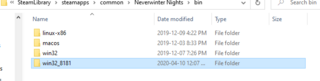
The
win32_8181folder insidebin, next towin32 -
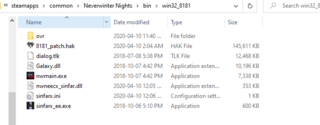
Inside
win32_8181— notesinfarx_ee.exe


Connecting

nwn.sinfar.net.Run sinfarx_ee.exe (in the win32_8181 folder), choose Direct Connect, and enter:
nwn.sinfar.net
A port is optional and only needed for specific servers.
When asked for an account name, you'll see a button to save it as default. Leave it unchecked if you use more than one account — checking it writes the name into your .ini files, and changing it later means editing those files by hand. Typing the name each time is simpler.
Creating your first character
The override files (download 4) re-enable character creation under EE. If you still crash partway through making a character, a reliable workaround is to create it on a Diamond Edition client (free with the GOG purchase) and then switch back to EE to play — the character carries over. A few high-level dungeons also use heavy visual effects that can crash EE, so some players keep Diamond installed for those.
EE/169 (Diamond 1.69) Hybrid Install
If you keep both EE and Diamond installed, you don't need two copies of the haks. In nwn.ini, point both at one hak folder using the [Alias] section at the top — for example HAK=C:\NeverwinterNights\NWN\hak. EE's nwn.ini is in Documents\Neverwinter Nights.
Troubleshooting
- "The code execution cannot proceed because OpenAL32.dll was not found"
- Run
oalinst.exefrom[NWN install]\bin\win32to install OpenAL, then relaunch the game. Use this bundled installer rather than downloading one from elsewhere — it's the version guaranteed to stay compatible with NWN:EE. - Crash when clicking Customize in character creation
- Missing override files. Confirm they're in
[NWN install]\bin\win32_8181\ovr(download 4). See also Creating your first character. - Direct Connect won't reach Sinfar
- Missing the engine rollback or the SinfarXEE loader (downloads 2 and 3), or you launched the standard EE client instead of
sinfarx_ee.exeinwin32_8181. - "The download of nwneecx_sinfar.dll failed"
- Download the current nwneecx_sinfar.dll manually and place it in the
win32_8181folder (next tosinfarx_ee.exe), then relaunch. - The launcher won't start, or Windows SmartScreen / antivirus blocks it
- SmartScreen and some antivirus software flag third-party launchers. On the "Windows protected your PC" prompt, click More info, then Run anyway. If your antivirus quarantines or deletes
sinfarx_ee.exeornwneecx_sinfar.dll(which can also show up as the DLL download failing, above), restore the file and add thewin32_8181folder to your antivirus exclusions, then relaunch. - Random crashes on load or in-game
- The EE top hak is missing or was overwritten by a hak reinstall — re-apply download 5 last. Missing or misplaced override files can also cause this; confirm they're in
[NWN install]\bin\win32_8181\ovr(download 4).