
Find the menu you need for roleplay, appearance, player information, settings and everyday utilities.
Find a function
Choose a task below, or use Contents to jump directly to a named menu.
Open your Player Tool
The Player Tool brings together your appearance, roleplay actions, player information, dice, settings and everyday utilities. Keep Player Tool 1 on your quickbar for easy access.

Example quickslot: F10. Any quickslot may be used.
F10 is the quickslot used in this example; it is not a required key binding.
Open the tool and choose a feature from PC Tool – Main Menu. Rest is the first option. Use Back to return or End to close the conversation.
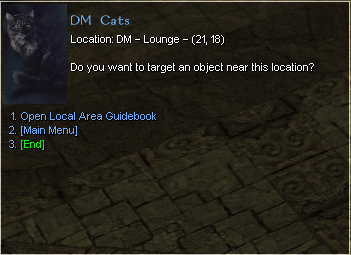
If you see the location/target screen, choose Main Menu to return here.

PC Tool – Main Menu. Select the image to enlarge.
Roleplay actions
Appearance
Player information
Settings & modes
Movement & utilities
Ready to level?
Explore twelve documented routes with level ranges, travel directions, monsters, equipment and materials to keep.
Choose a leveling route · Visit the Lotus Isles training grounds
About this guide
Based on the in-game screenshots supplied on 16 October 2026. Henchmen, Resting and Chat Colour Settings are shown as menu entries; their submenus were not supplied. Account and character selection screens are retained as source references rather than tutorial illustrations.
Sources and attribution
Read the 21 source records
Original authors, displayed dates and message/post IDs are retained below. Discord links may require Sinfar server access. Initial research: 15 October 2026; Player Tool and Lotus field evidence: 16 October 2026.
- PT001 — Guide maintainer (user); in-game text credited to Sinfar; Supplied 16 October 2026; capture date not shown. Player Tool 1 — quickslot example (F10) View screenshot. Quickbar icon labelled Player Tool 1, shown in the F10 slot. F10 is the example placement, not an established default binding.
- PT002 — Guide maintainer (user); in-game text credited to Sinfar; Supplied 16 October 2026; capture date not shown. Player Tool — Main Menu View screenshot. Rest; Emotes; Voices Chats; Quick Appearance Change; Player List; Roll a dice; Settings; Teleport; Miscellaneous Tools; Server Information; End.
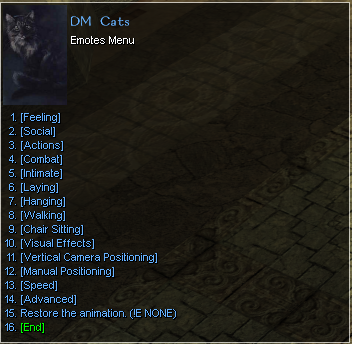
- PT003 — Guide maintainer (user); in-game text credited to Sinfar; Supplied 16 October 2026; capture date not shown. Emotes View screenshot. Feeling; Social; Actions; Combat; Intimate; Laying; Hanging; Walking; Chair Sitting; Visual Effects; Vertical Camera Positioning; Manual Positioning; Speed; Advanced; Restore the animation.
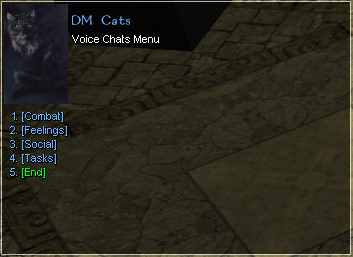
- PT004 — Guide maintainer (user); in-game text credited to Sinfar; Supplied 16 October 2026; capture date not shown. Voice Chats View screenshot. Combat; Feelings; Social; Tasks.
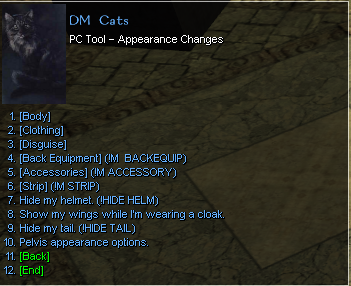
- PT005 — Guide maintainer (user); in-game text credited to Sinfar; Supplied 16 October 2026; capture date not shown. Quick Appearance Change View screenshot. Body; Clothing; Disguise; Back Equipment; Accessories; Strip; Hide my helmet; Show my wings while wearing a cloak; Hide my tail; Pelvis appearance options.
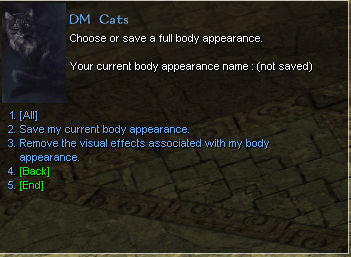
- PT006 — Guide maintainer (user); in-game text credited to Sinfar; Supplied 16 October 2026; capture date not shown. Body appearance View screenshot. Choose or save a full body appearance; All; Save my current body appearance; Remove the visual effects associated with my body appearance.
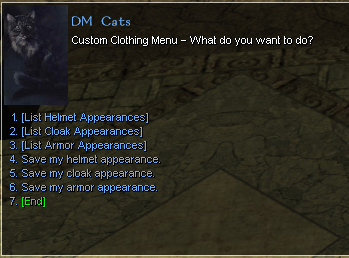
- PT007 — Guide maintainer (user); in-game text credited to Sinfar; Supplied 16 October 2026; capture date not shown. Clothing appearances View screenshot. List Helmet/Cloak/Armor Appearances; Save my helmet/cloak/armor appearance.
- PT008 — Guide maintainer (user); in-game text credited to Sinfar; Supplied 16 October 2026; capture date not shown. Alt-account selection Select one of your alt accounts; Next; Previous. Account names are example values, not general tutorial instructions.
- PT009 — Guide maintainer (user); in-game text credited to Sinfar; Supplied 16 October 2026; capture date not shown. Disguise character selection Select the character to disguise into; Next; Previous. Character names are example values.
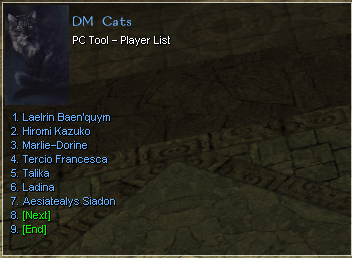
- PT010 — Guide maintainer (user); in-game text credited to Sinfar; Supplied 16 October 2026; capture date not shown. Player List View screenshot. List of character names and Next. Listed characters are examples from the capture, not a current online roster.
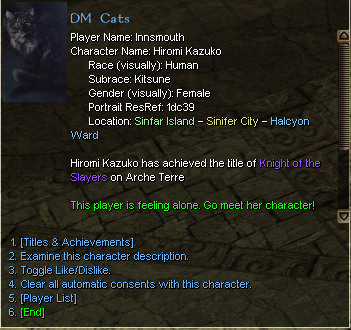
- PT011 — Guide maintainer (user); in-game text credited to Sinfar; Supplied 16 October 2026; capture date not shown. Selected player information View screenshot. Character and player information; location; titles; a feeling-alone status. Options: Titles & Achievements; Examine this character description; Toggle Like/Dislike; Clear all automatic consents with this character; Player List.
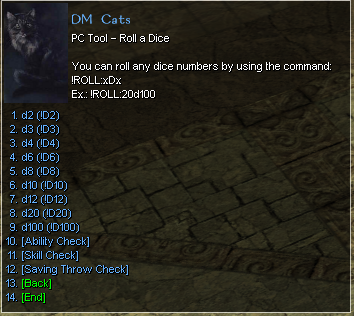
- PT012 — Guide maintainer (user); in-game text credited to Sinfar; Supplied 16 October 2026; capture date not shown. Roll a Dice View screenshot. d2, d3, d4, d6, d8, d10, d12, d20, d100; Ability Check; Skill Check; Saving Throw Check. Command example: !ROLL2d100.
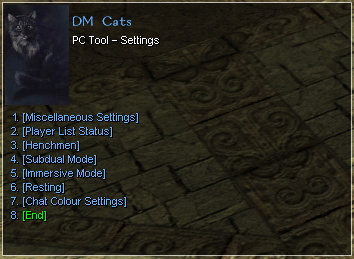
- PT013 — Guide maintainer (user); in-game text credited to Sinfar; Supplied 16 October 2026; capture date not shown. Settings View screenshot. Miscellaneous Settings; Player List Status; Henchmen; Subdual Mode; Immersive Mode; Resting; Chat Colour Settings. Henchmen, Resting and Chat Colour Settings submenu contents are not supplied.
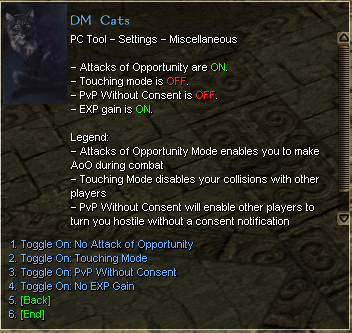
- PT014 — Guide maintainer (user); in-game text credited to Sinfar; Supplied 16 October 2026; capture date not shown. Miscellaneous Settings View screenshot. Toggles for attacks of opportunity, touching mode, PvP without consent and XP gain. Legend: touching mode disables collisions with other players; PvP Without Consent enables other players to turn hostile without a consent notification. Shown ON/OFF states belong to the captured character.
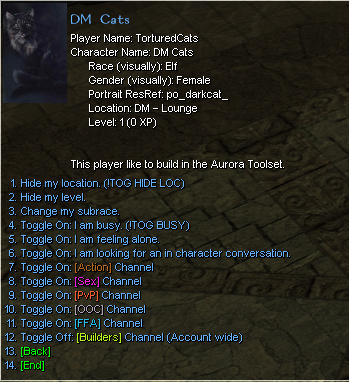
- PT015 — Guide maintainer (user); in-game text credited to Sinfar; Supplied 16 October 2026; capture date not shown. Player List Status View screenshot. Hide my location; Hide my level; Change my subrace; busy; feeling alone; looking for an in-character conversation; Action, Sex, PvP, OOC, FFA and Builders channel toggles. Builders Channel is labelled account wide.
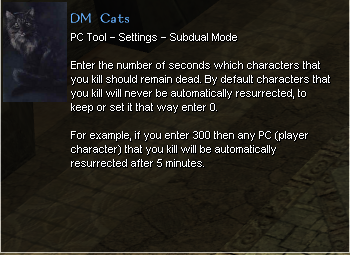
- PT016 — Guide maintainer (user); in-game text credited to Sinfar; Supplied 16 October 2026; capture date not shown. Subdual Mode View screenshot. Enter the resurrection delay in seconds for characters you kill. Menu example: 300 seconds means 5 minutes. Zero keeps/sets no automatic resurrection.
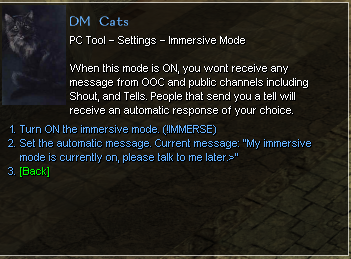
- PT017 — Guide maintainer (user); in-game text credited to Sinfar; Supplied 16 October 2026; capture date not shown. Immersive Mode View screenshot. When ON, messages from OOC and public channels including Shout and Tells are not received. Tell senders receive an automatic response of your choice. Includes enable toggle and message editor.
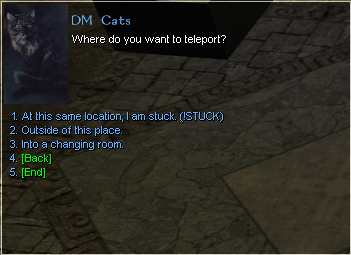
- PT018 — Guide maintainer (user); in-game text credited to Sinfar; Supplied 16 October 2026; capture date not shown. Teleport View screenshot. At this same location, I am stuck; Outside of this place; Into a changing room.
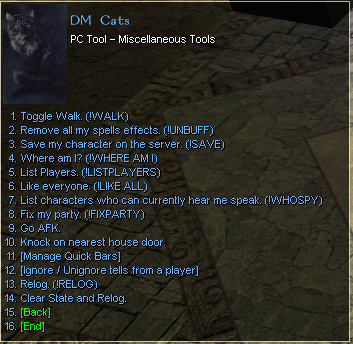
- PT019 — Guide maintainer (user); in-game text credited to Sinfar; Supplied 16 October 2026; capture date not shown. Miscellaneous Tools View screenshot. Toggle Walk; Remove all my spells effects; Save my character on the server; Where am I; List Players; Like everyone; List characters who can currently hear me speak; Fix my party; Go AFK; Knock on nearest house door; Manage Quick Bars; Ignore/Unignore tells from a player; Relog; Clear State and Relog.
- PT020 — Guide maintainer (user); in-game text credited to Sinfar; Supplied 16 October 2026; capture date not shown. Location / target screen View screenshot. Shows a location and coordinates, asks whether to target an object near it, and offers Open Local Area Guidebook or Main Menu. Screenshot does not establish which targeting action opened this screen.
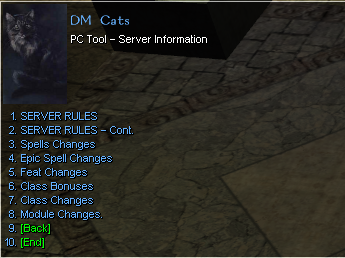
- PT021 — Guide maintainer (user); in-game text credited to Sinfar; Supplied 16 October 2026; capture date not shown. Server Information View screenshot. Server Rules; Server Rules - Cont.; Spells Changes; Epic Spell Changes; Feat Changes; Class Bonuses; Class Changes; Module Changes.